
Schedule a Meeting
 |
To schedule a meeting, click the Plus icon in the lower right corner. This will bring up a list of available actions. |
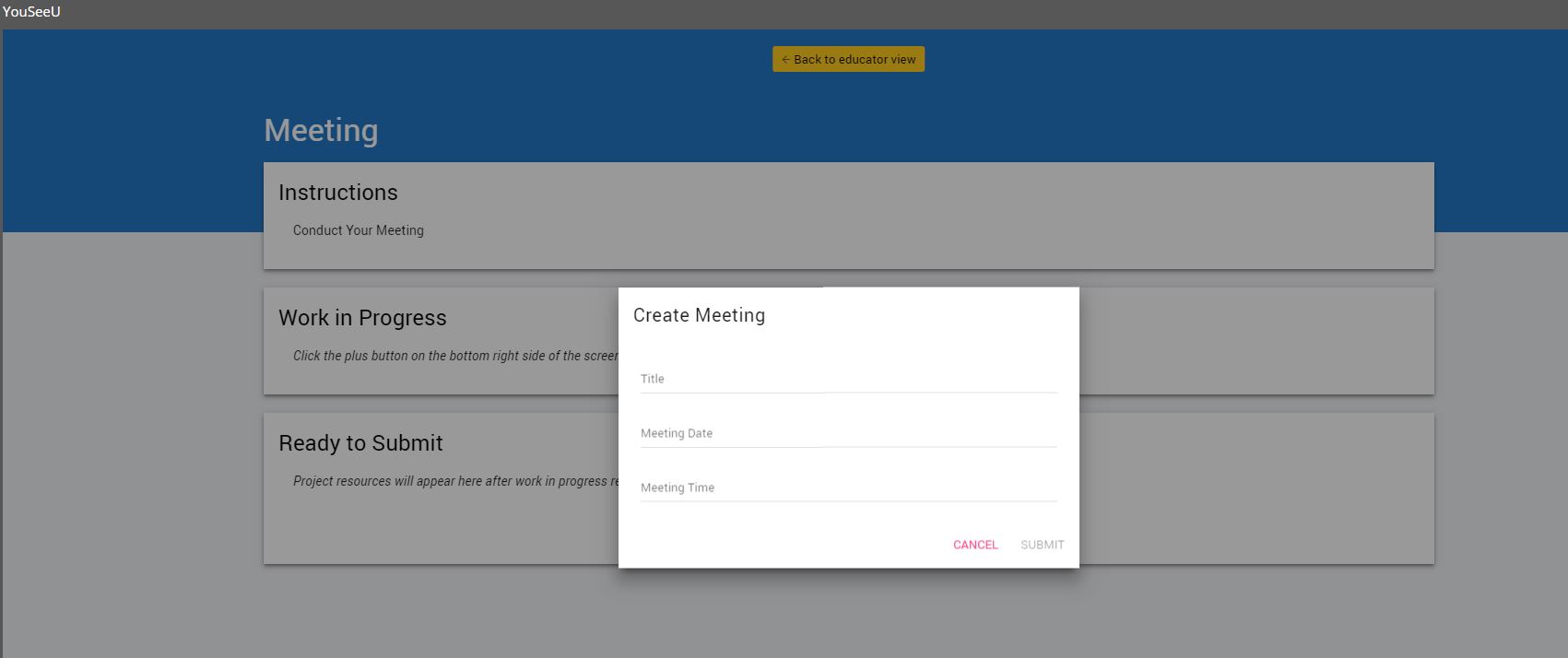
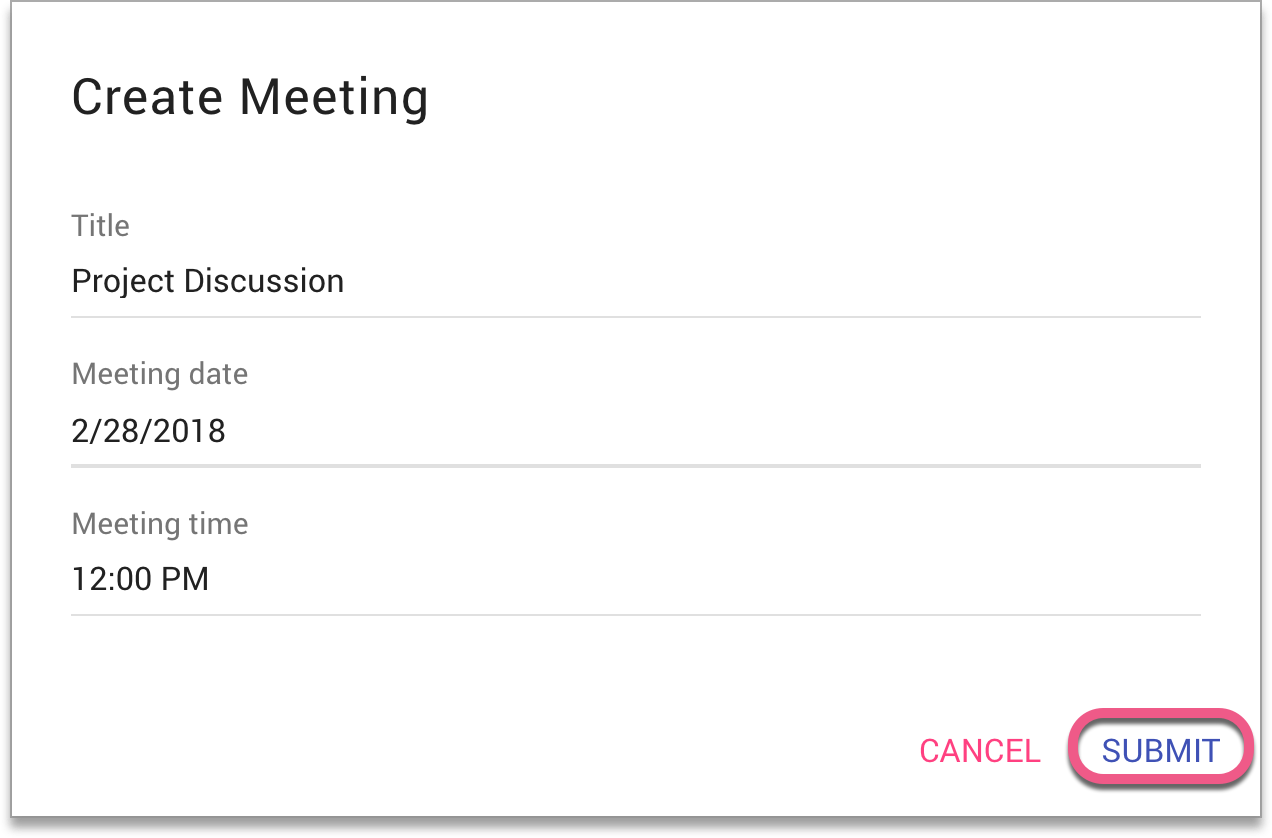
Title your meeting, then select your desired meeting date and time. Click Submit.
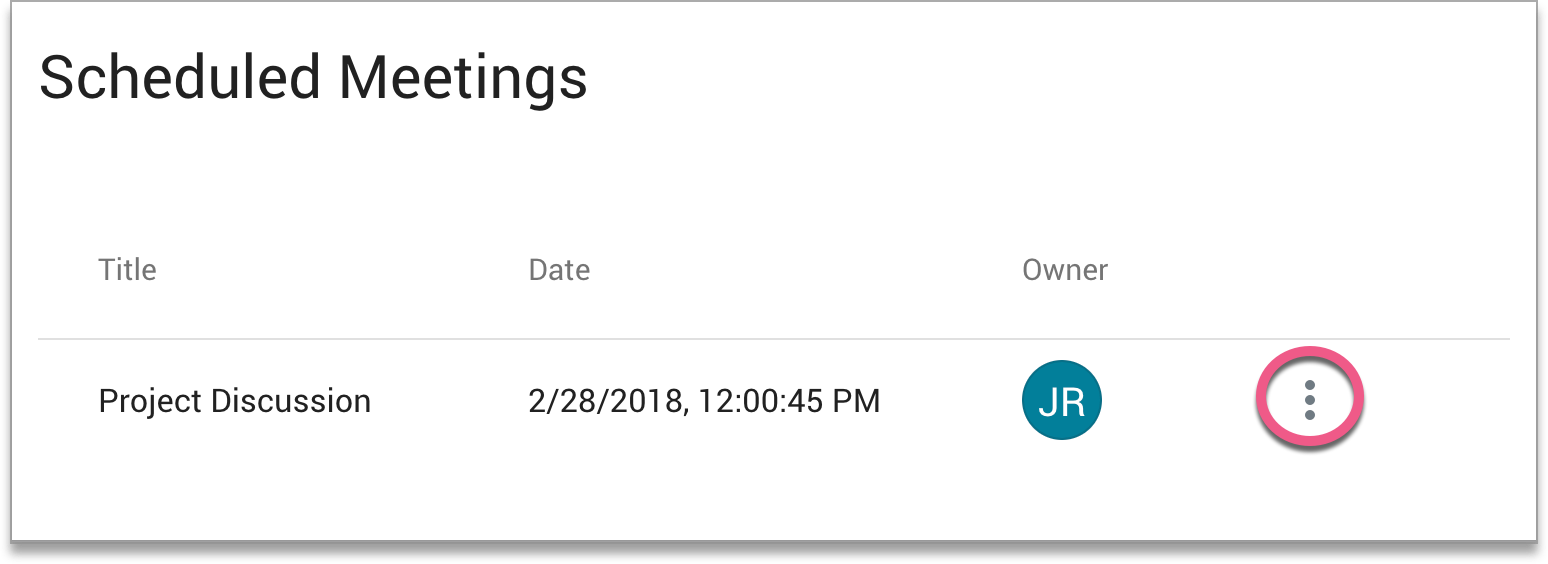
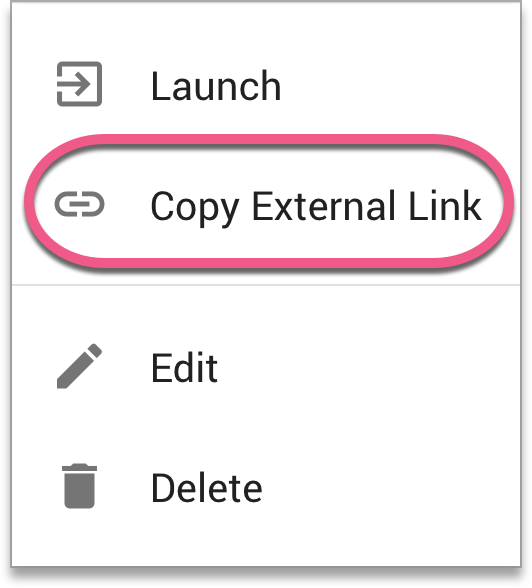
Your meeting will now appear under Scheduled Meetings. Click on the vertical ellipsis to bring up your options.
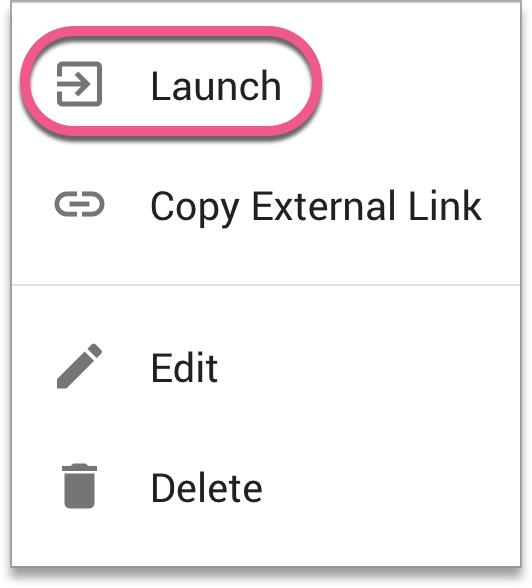
When the scheduled time arrives, you can Launch your meeting. You can also Edit or Delete it.
Invite External Participants
To invite participants, click Copy External Link. This will copy the link to your clipboard so you can send it to others.
Once your meeting has ended, it will take some time to process and upload to the Work in Progress phase.
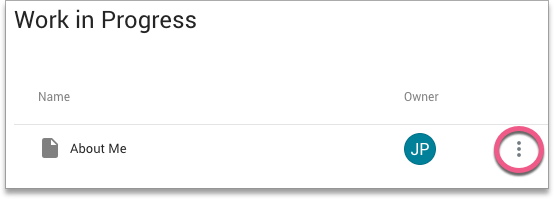
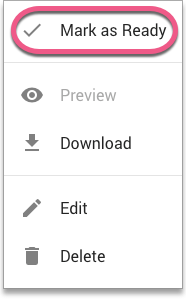
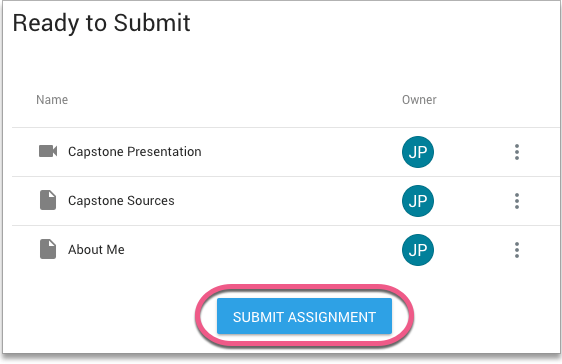
Then, Mark as Ready. Your selected item is now Ready to Submit.
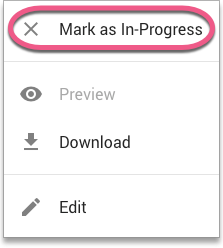
If you would like to move the item back to Work in Progress, click the menu icon again. Then, select Mark as In-Progress.
Once all desired videos, links, and files have been moved from Work in Progress to Ready to Submit, you can click Submit Assignment.
Still have questions? Please contact support.cengage.com